abp(net core)+easyui+efcore实现仓储管理系统——入库管理之十二(四十八)
在上面文章abp(net core)+easyui+efcore实现仓储管理系统——入库管理之十一(四十七) 的学习之后,我们已经实现了入库单前端的关于实现库位的功能,今天我们来学习如何在后台实现添加库位的功能。接上文。
abp(net core)+easyui+efcore实现仓储管理系统目录
abp(net core)+easyui+efcore实现仓储管理系统——ABP总体介绍(一)abp(net core)+easyui+efcore实现仓储管理系统——解决方案介绍(二)abp(net core)+easyui+efcore实现仓储管理系统——领域层创建实体(三) abp(net core)+easyui+efcore实现仓储管理系统——定义仓储并实现 (四)abp(net core)+easyui+efcore实现仓储管理系统——创建应用服务(五)abp(net core)+easyui+efcore实现仓储管理系统——展现层实现增删改查之控制器(六)abp(net core)+easyui+efcore实现仓储管理系统——展现层实现增删改查之列表视图(七)abp(net core)+easyui+efcore实现仓储管理系统——展现层实现增删改查之增删改视图(八)abp(net core)+easyui+efcore实现仓储管理系统——展现层实现增删改查之菜单与测试(九)abp(net core)+easyui+efcore实现仓储管理系统——使用 WEBAPI实现CURD (十一)abp(net core)+easyui+efcore实现仓储管理系统——EasyUI前端页面框架 (十八)
abp(net core)+easyui+efcore实现仓储管理系统——EasyUI之货物管理一 (十九) abp(net core)+easyui+efcore实现仓储管理系统——ABP WebAPI与EasyUI结合增删改查之一(二十七) abp(net core)+easyui+efcore实现仓储管理系统——ABP WebAPI与EasyUI结合增删改查之三(二十九) abp(net core)+easyui+efcore实现仓储管理系统——ABP WebAPI与EasyUI结合增删改查之八(三十四) abp(net core)+easyui+efcore实现仓储管理系统——ABP WebAPI与EasyUI结合增删改查之十(三十六) abp(net core)+easyui+efcore实现仓储管理系统——入库管理之一(三十七) abp(net core)+easyui+efcore实现仓储管理系统——入库管理之二(三十八)abp(net core)+easyui+efcore实现仓储管理系统——入库管理之三存储过程(三十九) abp(net core)+easyui+efcore实现仓储管理系统——入库管理之四(四十) abp(net core)+easyui+efcore实现仓储管理系统——入库管理之五(四十一) abp(net core)+easyui+efcore实现仓储管理系统——入库管理之六(四十二) abp(net core)+easyui+efcore实现仓储管理系统——入库管理之七(四十三) abp(net core)+easyui+efcore实现仓储管理系统——入库管理之八(四十四) abp(net core)+easyui+efcore实现仓储管理系统——入库管理之九(四十五) abp(net core)+easyui+efcore实现仓储管理系统——入库管理之十(四十六)abp(net core)+easyui+efcore实现仓储管理系统——入库管理之十一(四十七)
在上面文章abp(net core)+easyui+efcore实现仓储管理系统——入库管理之十一(四十七) 的学习之后,我们已经实现了入库单前端的关于实现库位的功能,今天我们来学习如何在后台实现添加库位的功能。接上文。
6. 在Visual Studio 2017的“解决方案资源管理器”中,左键单击“ABP.TPLMS.Application”项目,打开“InStocks\Dto”文件夹,找到InStockOrderDto与CreateUpdateInStockOrderDto两个类,分别添加一行代码。代码如下。
public List<InStockOrderDetailLocDto> InStockOrderDetailLoc { get; set; }7. 在Visual Studio 2017的“解决方案资源管理器”中,右键单击在领域层“ABP.TPLMS.Web.Mvc”项目中的Controller目录。 找到InStockController.cs文件中输入如下代码,通过构造函数注入对应的服务类实例。
namespace ABP.TPLMS.Web.Controllers{ public class InStockController : TPLMSControllerBase { private readonly IInStockOrderAppService _inSOAppService; private readonly IInStockOrderDetailAppService _inSODAppService; private readonly IInStockOrderDetailLocAppService _inSODLAppService; private const int MAX_COUNT = 1000; public InStockController(IInStockOrderAppService InSOAppService,IInStockOrderDetailAppService InSODAppService, IInStockOrderDetailLocAppService InSODLAppService) { _inSOAppService = InSOAppService; _inSODAppService = InSODAppService; _inSODLAppService = InSODLAppService; } //省略见前文 [HttpPost] [DisableValidation] public string Update(InStockOrderDto iso) { string result = "NO"; List<InStockOrderDetailDto> list = new List<InStockOrderDetailDto>(); List<InStockOrderDetailLocDto> listLoc = new List<InStockOrderDetailLocDto>(); try { string head = Request.Form["postdata"]; if (!string.IsNullOrEmpty(head)) { //把json字符串转换成对象 iso = JsonHelper.Instance.Deserialize<InStockOrderDto>(head); } list = GetDetailDtos(); listLoc = GetDetailLocDtos(); if (iso == null) { return "没有表头!"; } iso.InStockOrderDetail = list; iso.InStockOrderDetailLoc = listLoc; result = _inSOAppService.Save(iso); } catch { } if (result == "OK") { return "更新成功!"; } else return "更新失败!"; } private List<InStockOrderDetailDto> GetDetailDtos() { List<InStockOrderDetailDto> list = new List<InStockOrderDetailDto>(); string deleted = Request.Form["deleted"]; string inserted = Request.Form["inserted"]; string updated = Request.Form["updated"]; // TODO: Add update logic here if (!string.IsNullOrEmpty(deleted)) { //把json字符串转换成对象 List<InStockOrderDetailDto> listDeleted = JsonHelper.Instance.Deserialize<List<InStockOrderDetailDto>>(deleted); //TODO 下面就可以根据转换后的对象进行相应的操作了 if (listDeleted != null && listDeleted.Count > 0) { list.AddRange(listDeleted.ToArray()); } } if (!string.IsNullOrEmpty(inserted)) { //把json字符串转换成对象 List<InStockOrderDetailDto> listInserted = JsonHelper.Instance.Deserialize<List<InStockOrderDetailDto>>(inserted); if (listInserted != null && listInserted.Count > 0) { list.AddRange(listInserted.ToArray()); } } if (!string.IsNullOrEmpty(updated)) { //把json字符串转换成对象 List<InStockOrderDetailDto> listUpdated = JsonHelper.Instance.Deserialize<List<InStockOrderDetailDto>>(updated); if (listUpdated != null && listUpdated.Count > 0) { list.AddRange(listUpdated.ToArray()); } } return list; } private List<InStockOrderDetailLocDto> GetDetailLocDtos() { List<InStockOrderDetailLocDto> listLoc = new List<InStockOrderDetailLocDto>(); string locDel = Request.Form["locsDeleted"]; string locIns = Request.Form["locsInserted"]; string locUpd = Request.Form["locsUpdated"]; // TODO: Add update logic here if (!string.IsNullOrEmpty(locDel)) { //把json字符串转换成对象 List<InStockOrderDetailLocDto> listLocDeleted = JsonHelper.Instance.Deserialize<List<InStockOrderDetailLocDto>>(locDel); //TODO 下面就可以根据转换后的对象进行相应的操作了 if (listLocDeleted != null && listLocDeleted.Count > 0) { listLoc.AddRange(listLocDeleted.ToArray()); } } if (!string.IsNullOrEmpty(locIns)) { //把json字符串转换成对象 List<InStockOrderDetailLocDto> listLocInserted = JsonHelper.Instance.Deserialize<List<InStockOrderDetailLocDto>>(locIns); if (listLocInserted != null && listLocInserted.Count > 0) { listLoc.AddRange(listLocInserted.ToArray()); } } if (!string.IsNullOrEmpty(locUpd)) { //把json字符串转换成对象 List<InStockOrderDetailLocDto> listLocUpdated = JsonHelper.Instance.Deserialize<List<InStockOrderDetailLocDto>>(locUpd); if (listLocUpdated != null && listLocUpdated.Count > 0) { listLoc.AddRange(listLocUpdated.ToArray()); } } return listLoc; } [DontWrapResult] public string GetLocs(string Id) { int inodId; int.TryParse(Id, out inodId); PagedInStockDetailLocResultRequestDto paged = new PagedInStockDetailLocResultRequestDto(); paged.MaxResultCount = MAX_COUNT; paged.InStockOrderDetailId = inodId; var iodlList = _inSODLAppService.GetAll(paged).GetAwaiter().GetResult().Items; ; var json = JsonEasyUI(iodlList); return json; } }} 8.在Visual Studio 2017的“解决方案资源管理器”中,右键单击在领域层“ABP.TPLMS.Application”项目中的InStocks目录。 找到InStockOrderAppService.cs文件中的Save方法,修改如下。
public string Save(InStockOrderDto iso) { try { CreateUpdateInStockOrderDto order = ObjectMapper.Map<CreateUpdateInStockOrderDto>(iso); foreach (var item in order.InStockOrderDetail) { CreateUpdateInStockOrderDetailDto isod = ObjectMapper.Map<CreateUpdateInStockOrderDetailDto>(item); if (isod.Id > 0) { isodApp.Update(isod); } else isodApp.Create(isod); } foreach (var loc in iso.InStockOrderDetailLoc) { CreateUpdateInStockOrderDetailLocDto isodLoc = ObjectMapper.Map<CreateUpdateInStockOrderDetailLocDto>(loc); if (isodLoc.Id > 0) { isodLocApp.Update(isodLoc); } else isodLocApp.Create(isodLoc); } order.InStockOrderDetail = null; order.InStockOrderDetail = null; order.Status = 1 ; Update(order); } catch (Exception ex) { throw ex; } return "OK"; }9.在Visual Studio 2017的按F5运行。在主界面的菜单中,选择“Business->入库管理”菜单项,浏览器中呈现一个组织信息列表与五个按钮。
10.在“入库单管理”列表中选择一条入库单记录,然后点击“修改”按钮。弹出一个入库单修改界面,在界面中选择“入库单明细”,选中一条入库单明细。如下图。

11.选中序号为1的库位信息,我们发现库位这个单元格的数据不可见。如下图。
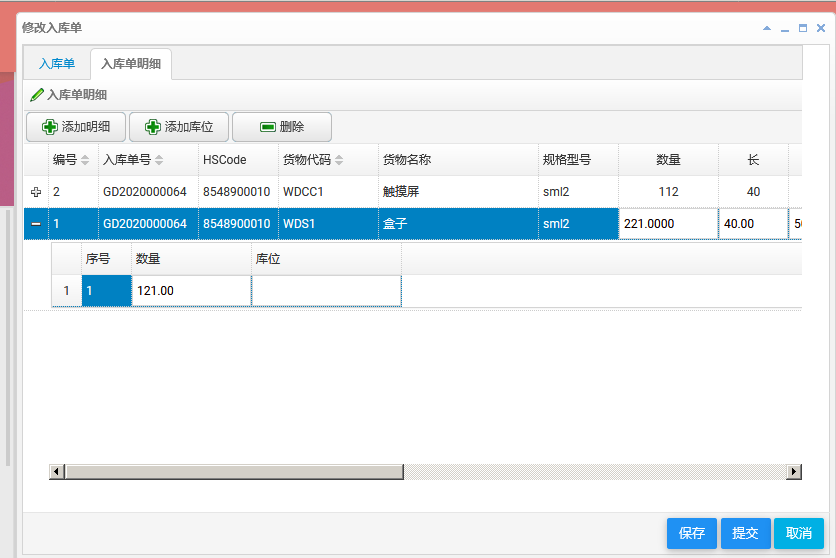
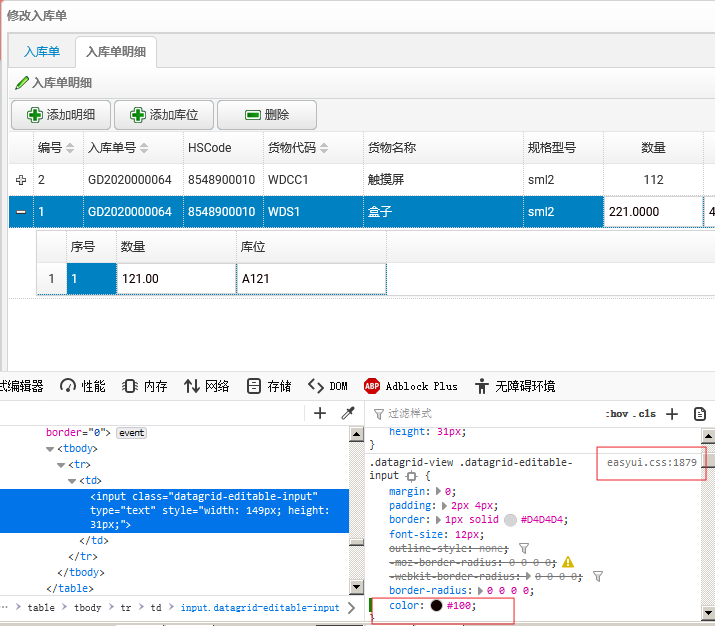
12. 在单元格上,点击鼠标右键,在弹出菜单中选择“查看元素”。如下图。

13.在修改文本框的样式,添加颜色。单元格中的数字立即可见。如下图。
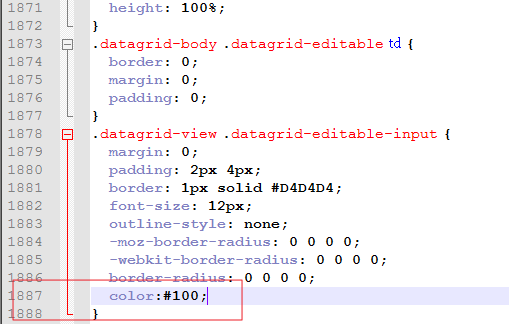
14.我们找到“easyui-1.8\themes\bootstrap\easyui.css”文件,找到1879行,在这个样式中添加颜色(“color:#100”)。如下图。
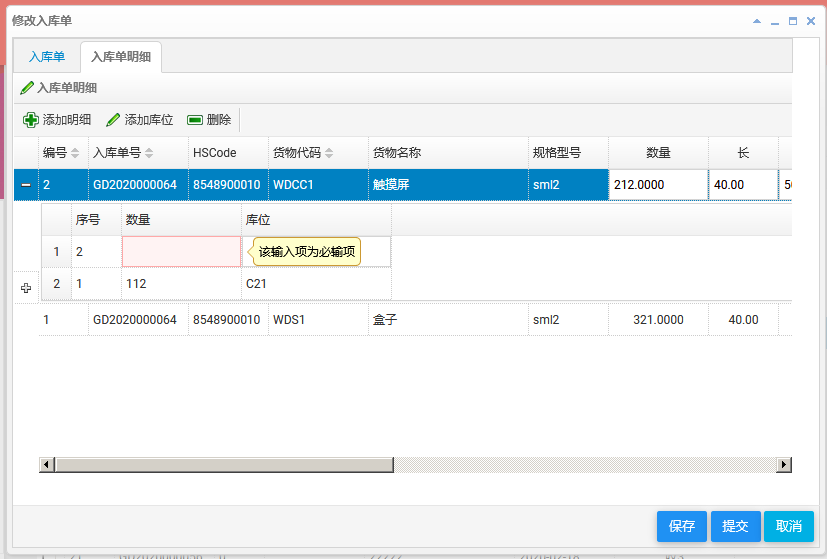
15.使用鼠标左键点击“添加库位”按钮。如下图。
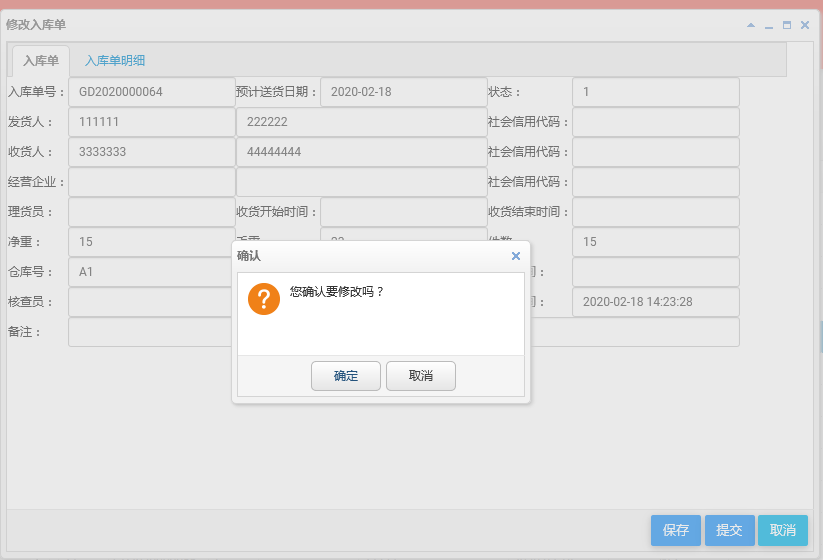
16.对于入库单的库位信息进行修改完成之后,点击“保存”按钮,弹出一个“您确认要修改吗?”对话框。点击对话框中的“确定”按钮。然后会出现修改入库单界面,如下图。
17.如果修改成功,会有一个“更新成功”的提示信息,同时更新入库单管理列表。如下图。

最后,我发现一个bug,偶尔出现,或是在第一次点保存按钮时出现。我暂时没找到原因。如果有知道如何解决的请留言。具体情况如下面三张图。图1,我添加了一条库位信息,点击保存按钮。见图2,实际上并没有把这个库位信息的数据传递到后台。最后的结果如图3。
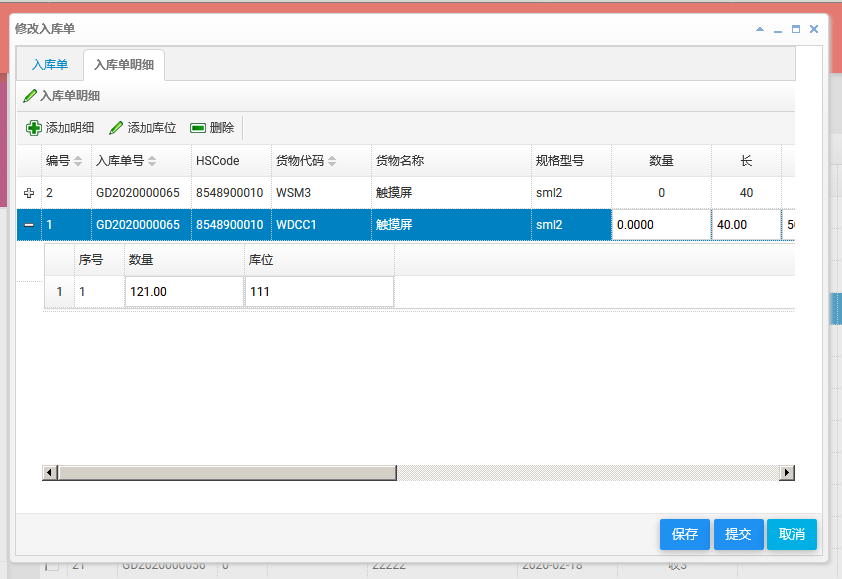
图1

图2

图3

No comments:
Post a Comment